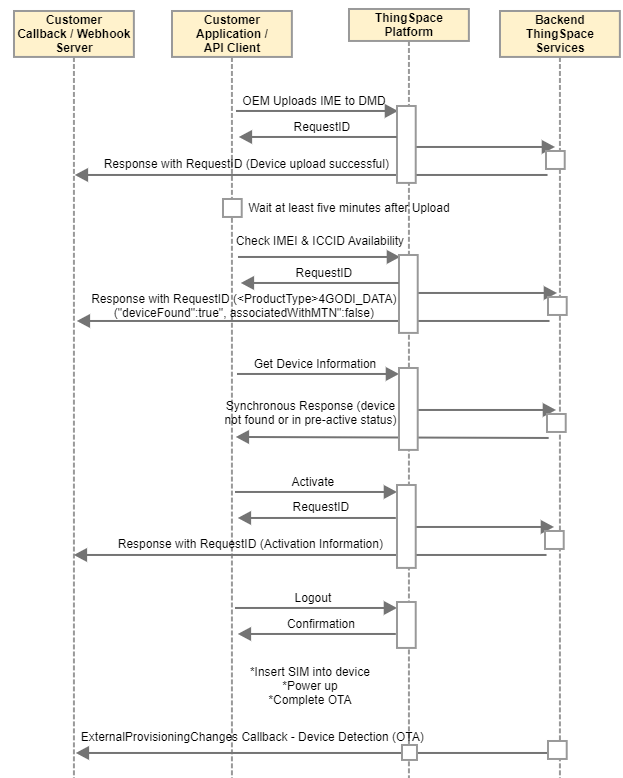
Best Practices for Activation
### Setup Requirements - Review the [Getting Started](/docs/standard-apis/connectivity-management/guides/getting-started/getting-started-introduction) and [Getting Credentials](/docs/session-management/guides/getting-credentials) pages. - Ensure your account has a proper service plan configured (use [GetPlans](/docs/standard-apis/connectivity-management/api-endpoints/service-plans/list-account-service-plans/listaccountserviceplans) to pull a list of service plans; work with your account team to ensure the proper features are applied to each service plan). - Obtain UWS Credentials with access to your account. Use these credentials with ThingSpace Key and Secret values (see [Getting Started](/docs/standard-apis/connectivity-management/guides/getting-started/getting-started-introduction)). - Obtain a ThingSpace Bearer/Access Token and a VZ-M2M Session Token for use in the header of all API calls (see [Acquiring Tokens](https://thingspace.verizon.com/documentation/get-started/tutorials-videos/acquiringtokens.html)). - Set up callbacks for use (highly recommended): - **[Callback setup](/docs/standard-apis/connectivity-management/api-endpoints/connectivity-callbacks/register-callback/registercallback)**: Callbacks (aka: Webhooks), an industry standard, are required in order to complete the API communication lifecycle and to receive critical data from Verizon (see [Callback Services](https://thingspace.verizon.com/documentation/get-started/tutorials-videos/callback-services.html) and [Callback Best Practices](/docs/standard-apis/connectivity-management/guides/callbacks/about-callback-services)). - Register a URL to receive callback messages and run a callback listening service at that URL. ThingSpace will send a callback message when each device has been fully activated, or if there was a problem and the device was not activated. If you do not have callbacks registered you will not receive error messages. - If you need to utilize a temporary callback service, consider using [https://webhook.site/](https://webhook.site/) or speak with a Developer Relations Engineer about other options. - [Register](/docs/standard-apis/connectivity-management/api-endpoints/connectivity-callbacks/register-callback/registercallback) for: - **DeviceService**: This will send [Device Availability](/docs/standard-apis/connectivity-management/api-endpoints/device-management/check-devices-availability-for-activation/checkdevicesavailabilityforactivation) responses. - **CarrierService**: This will send activation and/or error information. - **ExternalProvisioningChanges**: This will return changes made by other Verizon systems as well as Over the Air Activation (OTA) confirmation for when a device first connects to the network and authenticates. This is also useful for tracking IMEI changes such as when a SIM is inserted into a different device. - **For an OEM**: - Ensure your Verizon certified device is included in the Verizon Device Management Database (DMD) either by using the [Open Development](https://opendevelopment.verizonwireless.com/) portal or via the [Upload Devices](/docs/standard-apis/connectivity-management/api-endpoints/device-management/upload-device-identifier/deviceupload) API. - If you used the API to upload the device(s), ensure you have received a confirmation from the **DeviceService** [callback](/docs/standard-apis/connectivity-management/api-endpoints/connectivity-callbacks/register-callback/registercallback) and have waited at least five minutes for it to fully process. ### Prior to Activating any Device Verify that the devices are ready to be activated before sending a `POST /devices/actions/activate` request: - [Check Device (IMEI and SIM/ICCID) Availability](/docs/standard-apis/connectivity-management/api-endpoints/device-management/check-devices-availability-for-activation/checkdevicesavailabilityforactivation) - These can be checked in a single call. - IMEI: If not found then stop: Return to [Upload](/docs/standard-apis/connectivity-management/api-endpoints/device-management/upload-device-identifier/deviceupload) or work with your account team. - If `<ProductType>4GODI_DATA</ProductType>` proceed - If `<ProductType>4GODI_MOD</ProductType>` do NOT proceed: Device is still in module phase and requires an [Upload](/docs/standard-apis/connectivity-management/api-endpoints/device-management/upload-device-identifier/deviceupload) into the Verizon Device Management Database to update it to a Data device (it must be a `4GODI_DATA` type to proceed) - SIM/ICCID: - `"deviceFound":false` - `"deviceFound":true` Is the SIM / ICCID a valid SIM (is it in the Verizon database of known SIM cards, available for use to activate with?). This is a requirement: the SIM card must be a known/valid SIM. If you tried to use a SIM / ICCID from a different carrier (or mistyped the proper ICCID), you will see "deviceFound": false telling you the SIM is not recognized by Verizon and you cannot activate it. Do not proceed with this ICCID. - `"associatedWithMTN":true` - `"associatedWithMTN":false` Is the SIM / ICCID associated with a MTN: Mobile Telephone Number (or line of service)? This tells you if the SIM is already activated. If it is associated with an MTN (true), it will not pass the activation process since it is already active on a line of service. The activation will fail with results: Device is already active. If you see "associatedWithMTN": false then the SIM / ICCID is available to activate. To activate a SIM you need both: - `"deviceFound":true` - `"associatedWithMTN":false` [Retrieve Device Info](/docs/standard-apis/connectivity-management/api-endpoints/device-management/list-devices-information/listdevicesinformation) send a `POST /devices/actions/list` request to check the state of the devices before service activation. - New devices that have not been added to the account should return “DeviceNotFound” (which is good). - Devices that have already been added to the account must be in the pre-active or deactive state before service can be activated. - If `"state":"active"` or `"state":"suspend"` **STOP**: you cannot activate a device that is already active. - If the device is found but suspended you must first [Restore](/docs/standard-apis/connectivity-management/api-endpoints/device-management/restore-service-for-suspended-devices/restoreserviceforsuspendeddevices) service before taking further steps. - If the device is found but deactive: - If you are going to activate the same ICCID and IMEI on the same account, then proceed. - If not or you wish to use a different ICCID then [Delete](/docs/standard-apis/connectivity-management/api-endpoints/device-management/delete-deactivated-devices/deletedeactivateddevices) the ICCID and IMEI before proceeding ### Activate [POST /devices/actions/activate](/docs/standard-apis/connectivity-management/api-endpoints/device-management/activate-service-for-devices/activateservicefordevices) Minimum requirements: - **IMEI** and **ICCID** or **SKU** and **ICCID**. - **Service Plan name**. - **Zip Code**: The sales team may ask you to use a particular zip code. If not, use your HQ zip code. - **Account Number**. **Note**: If your account is set up for IoT bulk order flow, please submit activation requests in bulk (do not submit them individually). The bulk request will process quicker and ensure a better process. Activations usually complete within a few minutes. If you receive a general error in a callback, you should open a support ticket. Other errors indicate a problem with the request parameters, so please verify the device identifiers and other values and then resend the request. In addition to receiving **CarrierService** callback messages, You can use `POST /devices/actions/list` to check the status of the device and `POST /devices/history/actions/list` to see details of completed activation requests. **Note**: Activations may take up to 12 hours to complete if there are major network or technology updates occurring at the same time. Don't forget to [Logout / End Session](/docs/session-management/api-endpoints/endconnectivitymanagementsession)! ### Next Steps - Receive Callback from Verizon (see [Callback best practices](/docs/standard-apis/connectivity-management/guides/callbacks/about-callback-services)). - Process Callback - confirm Activation Success ("state":"Active"). - If [Error](/docs/standard-apis/connectivity-management/guides/error-messages/callback-errors), evaluate message to determine next steps. - If Success, Insert SIM into a device and power up / test connectivity (in an area with good [coverage](https://www.verizon.com/coverage-map/)). - Apply/test other services if needed ([SIM Secure](/docs/premium-apis/sim-secure/overview), etc.) ### Callback example **ExternalProvisioningChanges** callback confirming OTA: ```json { "requestId": "03f327d5-3043-42a1-a6b7-4b4549ce1da0", "deviceIds": [ { "id": "0123456789ABCDE", "kind": "imei" } ], "deviceResponse": { "externalProvisioningChangeResponse": { "change": "Device Detection", "deviceInfo": { "preIMEI": "0123456789ABCDE", "accountName": "0000123456-00001", "billingCycleEndDate": "2020-06-30T00:00:00.0000000Z", "carrierInformations": [ { "carrierName": "Verizon Wireless", "servicePlan": "5GBPub", "state": "active" } ], "connected": false, "createdAt": "2020-06-30T17:18:13.0000000Z", "deviceIds": [ { "id": "6125551212", "kind": "mdn" }, { "id": "0123456789ABCDE", "kind": "imsi" }, { "id": "0123456789ABCDE", "kind": "imei" }, { "id": "0123456789ABCDEF1234", "kind": "iccId" }, { "id": "16125551212", "kind": "msisdn" }, { "id": "6125551212", "kind": "min" } ], "groupNames": ["Default: 0123456789-00001"], "ipAddress": "198.162.28.80", "lastActivationBy": "Name Surname", "lastActivationDate": "2020-06-30T17:18:26.0000000Z" } } }, "callbackCount": 1, "maxCallbackThreshold": 4 } ``` ### Logic Flow